• published the article Preparing the PackageMeta File

    Preparing the PackageMeta File


    This file can have two names: "pkgmeta.yaml", or ".pkgmeta". If, for some reason, your repository contains both files, pkgmeta.yaml will take precedence. For the remainder of this article, we will refer to the file as PackageMeta.

    Location of the File

    The PackageMeta file is a YAML file that goes in the root of your repository project folder. This means /trunk/ for Subversion users and / for Git and Mercurial users. Remember to use spaces instead of tabs for indentation in the file. Your PackageMeta file, if it exists, will be validated when you commit.

    Creating the File

    On some OSes (Windows for example) there is a bit of difficulty creating this with the name .pkgmeta. To create the file correctly, you will need to use quotations around the file name. A simple mechanism to create this file is to follow these steps:


    1. Open Notepad or your preferred text editor (not a word processor).
    2. Make sure you have a blank document by going to the File menu and selecting New.
    3. Go to the File menu and select Save As.
    4. Navigate to the directory you want the file to be saved in.
    5. In the box for the filename to save as type .pkgmeta.
    6. Save the file.

    Alternatively if you have issues with that method you can use the command line prompt to rename a text file.

    1. In Windows Explorer, create a new text document. You can name it to whatever you want, lets call it foo.txt.
    2. Go to the Start Menu, then to Run and type in cmd. This will open a command window.
    3. Navigate to where foo.txt is saved using the cd command (ie: cd c:\My Documents\)
    4. Type in the following to rename foo.txt to .pkgmeta: move foo.txt ".pkgmeta"

    Specifying externals

    Externals are specified by providing the externals header and key-value pairs for the local path to the remote repository.

    Example:

    externals:
        libs/LibStub:
            url: svn://svn.wowace.com/wow/libstub/mainline/trunk
            tag: latest
        libs/CallbackHandler-1.0:
            url: svn://svn.wowace.com/wow/callbackhandler/mainline/trunk/CallbackHandler-1.0
            tag: latest
        libs/LibMonkey-1.0: svn://svn.curseforge.net/wow/libmonkey-1-0/mainline/trunk
        libs/LibBanana-1.0: 
            url: git://git.curseforge.net/wow/libbanana-1-0/mainline.git
            tag: 1.2
        libs/LibSuit-2.0:
            url: http://hg.curseforge.net/wow/libsuit-2-0/mainline
    

    In this example, LibMonkey and LibSuit will be packaged with the latest version available, LibStub and CallbackHandler will be packaged with the latest tag available, and LibBanana will be packaged with tag 1.2 always.


    You do not need to have an empty libs folder for the above example to work, it will be created for you. Unlike svn:externals, you can specify any repository type, be it svn, git, or hg.


    Note: Your remote paths will be validated to check if they exist when you commit. This may cause you to wait a few moments.

    Why not just use svn:externals?

    The main reason to not use svn:externals is that since curseforge provides Subversion, Git, and Mercurial support, the PackageMeta file is an easy way to support all three equally. Also, svn:externals can only refer to other subversion repositories, whereas with the PackageMeta file, there is nothing stopping you from referencing repositories of unlike types.

    Moving folders around with the packager

    There is a way to move folders by specifying in .pkgmeta. This is useful if you want to essentially have two addons in one game, particularly if one is a module of the other, e.g. Monkey and Monkey_Suit. Suit is inside the Monkey project, but can move out and be its own addon with your PackageMeta.

    Example:

    move-folders:
        Monkey/Modules/Suit: Monkey_Suit
        Monkey/Modules/Hat: Monkey_Hat
    

    For clarity, it is Source: Destination.

    As you can see, unlike other portions, you have to specify your addon's name, as this allows you to create modules.

    Ignoring folders or files

    To make the packager ignore files, you can easily do so by making an ignore header with filepaths underneath

    Example:

    ignore:
        - Scripts # ignore the scripts folder
        - Some/File.txt # ignore a specific file
    

    It is to be assumed that this takes place before moving folders around with the move-folders header.

    Files beginning with a period, like .pkgmeta and .docmeta, are always ignored by the packager and should not be listed here.

    Changing the package name

    Instead of using the "Package as" box on your repository, you can specify this in your .pkgmeta file as well.

    Example:

    package-as: Monkey
    

    Specifying dependencies

    To specify dependencies that will show on the site and also through the Curse Client, you can do so with the required-dependencies and optional-dependencies headers

    Example:

    required-dependencies:
        - monkey-town # same as monkey-town/mainline
    
    optional-dependencies:
        - monkey-city
    

    This will not add anything to any files in your zip.

    The list consists of the short names of projects or project/repository combos.

    Tools used

    If you want to specify that you used a tool that is not a library, but would like people to know that it was used, and for it to receive points for the Author Rewards Program, you can do so with the tools-used header. Example:

    tools-used:
        - data-tools # same as data-tools/mainline
    

    Manual changelog

    If you want to make your own changelog manually rather than having one automatically generated for you, that's possible with the following specification:

    manual-changelog: CHANGELOG.txt
    

    You can specify any filepath you want. If it cannot be found, the automatic changelog will still be created.

    If you want a changelog that is not plain text, use the following format:

    manual-changelog:
        filename: CHANGELOG.txt
        markup-type: markdown
    

    Supported markup types are: plain, html, and markdown.

    License output

    If you want your project's license to be automatically included with your zip, you can specify it with license-output.

    license-output: LICENSE.txt
    

    You can specify any filepath you want.

    -nolib creation

    If your project has libraries, by default two zips will be made, one with libraries (main one) and one without, the -nolib version. You can disable this with the following:

    enable-nolib-creation: no
    

    If not specified, it will default to yes.

    Why call it PackageMeta?

    It's a nice, neutral name. We didn't want something CurseForge-specific, in case anyone else decides to implement it.

    Also, since we don't want to limit it to just external definitions, we went for something more generic than .externals

    Full Example

    package-as: Monkey
    
    externals:
        libs/LibStub:
            url: svn://svn.wowace.com/wow/libstub/mainline/trunk
            tag: latest
        libs/CallbackHandler-1.0:
            url: svn://svn.wowace.com/wow/callbackhandler/mainline/trunk/CallbackHandler-1.0
            tag: latest
        libs/LibMonkey-1.0: svn://svn.curseforge.net/wow/libmonkey-1-0/mainline/trunk
        libs/LibBanana-1.0: 
            url: git://git.curseforge.net/wow/libbanana-1-0/mainline.git
            tag: 1.2
        libs/LibSuit-2.0:
            url: http://hg.curseforge.net/wow/libsuit-2-0/mainline
    
    move-folders:
        Monkey/Modules/Suit: Monkey_Suit
        Monkey/Modules/Hat: Monkey_Hat
    
    ignore:
        - Scripts # ignore the scripts folder
        - Some/File.txt # ignore a specific file
    
    required-dependencies:
        - monkey-town
    
    optional-dependencies:
        - monkey-city
    
    manual-changelog: CHANGELOG.txt
    
    license-output: LICENSE.txt
    
    tools-used:
        - data-tools # same as data-tools/mainline
    Posted in: Preparing the PackageMeta File
  • published the article Files: Types, Definitions, and Management

    File Types and Additional Fields

    • Release: Syncs to the Twitch Desktop App by Default. These are the files that will auto download when a user clicks the default download button on a project.
    • Beta: Will not sync to the Twitch Desktop App unless the user chooses to receive Beta files. These files will also not appear in the sidebar for all games (except Minecraft).
    • Alpha: Will not sync to the Twitch Desktop App instances set to receive Alphas. These files will also not appear in the sidebar for all games (except Minecraft).
    • Additional Files - These are files attached to another file. Usually these are development files for other mod developers who need access to un-obfuscated code. They do not download with the main file. Instead a developer would go to the file page and download them individually. To upload additional files you would select the file you wish to attach them to in the file view and then select the button on the individual file page that says "Upload Additional Files".
    • Project Relationships - These are set on individual files. They can be embedded libraries, optional libraries, required libraries, tools or incompatible files. Once app integration occurs required libraries will automatically be downloaded with the file, optional files will display a message informing the player, and incompatible files will warn the player that installing the 2 files together is at their own risk. 


    Adding Files to a Project

    Navigate to your Project Dashboard. To the right of your project title is a button labeled File. Clicking this will take you to the Files tab and once uploaded, will list your project files. This page will differ slightly based on what game your project is for. Below is a list of fields that you will fill out to have your file submitted:


    • Upload file: Pick the file you want to upload
    • Display Name: Your project file is named v2.0 , but you want it to look a bit fancier, type in a name here that will show up in the file list. It is NOT recommended to give every file the same name, and this field is optional.
    • Release Type: Detailed Above
    • Changelog: A place to put all the updates you have done between versions
    • Supported Version: Pick which versions of the game your project is compatible with. You can choose multiple versions.
    • Supported Java versions (Minecraft Only): If your project only works in Java 6, this is the spot to say so.
    • Related Projects: Dependencies and Incompatibilities. This is where you can link to other projects on CurseForge. You can link to a required project, or to a recommended project, or to a project that you know does not work well with your project.

    After filling out all of the appropriate fields, click Submit File. You will be redirected to your Files tab and you should be able to see your newly added file. You can add more files by following the same process you just went through. At this point your file will be labeled "Under Review" and it is off to the moderators to review and approve it. They may send it back to you requesting changes. They may also reject it. Changes and rejection reasons are covered under Changes Required and Rejected Files


    Archiving or Deleting Files

    There are two ways to remove a file from your project.


    Archiving: Removes a file from the public view. It can no longer be downloaded on its own. However if a content pack or another mod depends on it they can still download it as a dependency. This is useful for CoreMods or API/Libraries where you want to remove an old file but not break a mod that depends on the old file. Archived files can be restored by their owner at any time


    Deleting: Once a file is archived, an author has the option of deleting the file. Once the file is deleted any files that depend on it can no longer access it. Make sure you want to erase the file before doing so.  In most cases Archiving is the better option. Deleted files require a site admin to restore. 

    Posted in: Files: Types, Definitions, and Management
  • published the article Changes Required and Rejected Files

    Project/Modpack Policies

    Policy Number Name Description
    1.1 Invalid Localization All files must be localized properly
    1.2 Corrupted Files All files must be readable (not corrupt)
    1.3 Invalid Description Your Project/Modpack description must accurately describe the purpose and function of your project/modpack. Be descriptive with what it includes or changes within the game.
    1.4 Not In English Names and Descriptions must be in English, or have an English translation.
    1.5 Name Contains Information Names should not contain game name, game versions, or file versions.
    1.6 Inappropriate Project Projects that either do not appear to be the correct content for the current category, game, or adult content in a T rated or less game category or are otherwise deemed inappropriate by moderation
    1.7 Abandoned Project Project must be updated at least once every 12 months. Elsewise, it will be considered abandoned.
    1.8 Invalid Layout WoW-like game addons require a certain file structure to work. If this is incorrect, the addon will not load.
    1.9 Blacklisted Files Your project can not contain any blacklisted files.
    1.10 Third Party Downloads We do not allow descriptions with third party downloads.
    2.1 Missing Manifest/ Project Incorrectly Derivative Modpacks must be created with the Twitch Desktop App, and must include a valid manifest.json
    2.2 Unknown Mods Mods that are not hosted on CurseForge and are not listed in the Non-CurseForge Approved list cannot be included in modpacks.
    2.3 Modpack file size Modpack primary files can not be larger than 2GB
    2.4 Server Files Your file hierarchy must allow for proper functinality. Server files must be uploaded as child files.
    2.5 Removed from CurseForge All files within a modpack must exist on CurseForge
    2.6 CurseForge Files Included Files already hosted on CurseForge should be included by adding them through Twitch App, and not manually adding them to the zip file.
    2.6 Manually Modified Manifest Edits to the manifest that the Twitch App generates for a modpack are not allowed.
    2.7 Modpack Inadequate Description Modpacks require a bare minimum description that at least gives an idea of what the modpack is about.
    2.8 Restricted License Files must be licensed appropriately for distribution unless the Author has explicitly uploaded the files to CurseForge
    3.1 Texture Pack Missing Sample Texture Packs/Resource Packs must have a sample image.
    3.2 Including Spigot/Bukkit Spigot/Bukkit JARS should never be included in a plugin download
    3.3 Invalid .toc Wow-like game addons require a toc file.

    Rejected Projects

    The entire project is rejected, and in some cases you may be banned from submitting more projects.

    • Inappropriate or Not Real: You may think its funny to upload porn videos in zip format. We do not. Uploading non game content under the pretense that it is game content will get a project rejected. Depending on what you put in the file you may be banned permanently.
    • Plagiarism: Don't steal. Do not upload work that does not belong to you. You will most likely be banned.
    • Third Party Installation Utility: It is incredibly rare that we allow .exe files and third party launchers/installers to be uploaded. You won't be banned but the project will be rejected.
    • Uploaded another Author's work: This means you uploaded something that might allow cloning but you didn't make any significant changes. You won't be banned but it is highly frowned upon. Continuing to attempt to upload cloned projects with no changes will get you upgraded to Plagiarism.

    Rejected Files

    Files can be rejected for a multitude of reasons. Below are the list of reasons, and how to fix them.


    • Duplicate file: This is the most common. We use an md5 based system to check and ensure each file is unique. Most often unzipping and re-zipping the project then re-uploading will solve this issue. The file processor is saying that the electronic signature on the file is the same as another file already in the system.
    • Contains thumbs.db, __MACOSX or .DS_Store: This tends to happen when there are so many of these files in the folder that its overwhelming the system. Just a few will probably go through, over 50 and your file may be sent back to have them removed.
    • Individual Files: Upload .zip , .jar not the files inside the folder. The only exception is Kerbal Space Program. The Shareables section will allow you to upload individual .craft files.
    • Invalid Archive: The .zip or .jar got corrupted somewhere. Or you upload a .rar or some other special extension. 
    • Mod Statistics Included: Kerbal Space Program ONLY: This is a file that includes another file that Squad has stated is not allowed inside other .zips. You will have to upload a new file without Mod Statistics
    • For more information about File Statuses and information regarding how to fix common issues: https://authors.curseforge.com/knowledge-base/projects/174-file-status-info

    Changes Required

    • Needs a better description: "It adds stuff" is not a description. Add a few lines about what your project does.
    • Project Avatar: All projects except API/Libraries require a default image/logo/avatar to be approved
    • Source Required: (Kerbal Space Program ONLY) Squad requires that all mods contain the source code. 
    • Not in English: While we love our foreign fans, this site and most of its users speak English, therefor all projects must contain an English description.
    • Punctuation and Grammar: "iz g8 plz use kthnx"  is not acceptable, you have almost unlimited characters, use some of them.
    • Third Party Download Link: We do not accept projects that have a direct link to a third party download. 
    • Texture Pack Preview: Texture packs and texture replacements require a preview image of the textures. 
    • KSP Part pack with Third Party Plugin: (Kerbal Space Program ONLY) Part packs should not include plugins that don't belong to you.
    • Mcreator: Mcreator is a system for creating Minecraft mods, it has very specific terms stating that mods made with it must link back to their website. https://mcreator.net/terms-of-use

    Fix the issue in the message sent to you and the mod will be resubmitted for approval. 

    Posted in: Changes Required and Rejected Files
  • published the article File Status Info

    This document will outline what the file statuses for files, and what you can do to fix them.

    .DS_Store

    .DS_Store means that you have included .DS_Store files/folders/directories in the zip file.


    To correct this, remove the .DS_Store files from the zip and re-upload, or zip with the following command:

    zip -r "$1" "$1" -x \*.DS_Store

    _MACOSX

    _MACOSX means that you have included _MACOSX files/folders/directories in the zip file.


    To correct this, remove the _MACOSX files from the zip and re-upload, or zip with the following command:

    zip -r "$1" "$1" -x \_MACOSX

    Thumbs.db

    Thumbs.db means that you have included Thumbs.db files within the zip file.

    To correct this, remove the Thumbs.db files from the zip and reupload.

    You may have to enable viewing of hidden and system files to see this file. You can learn how to by visiting this Microsoft KB article.

    Not a proper zip file

    Not a proper zip file means that the zip file is corrupted, or was corrupted during upload.

    To correct this, recreate the zip file, and reupload.

    Individual files, not a zip

    Individual files, not a zip means that you have uploaded files individually, and not in a zip file.

    Your zip file should look like for World of Warcraft, Runes of Magic, or Rift:

    /Addon
    AddonFile1
    AddonFile2
    /Libs

    For other games, use the appropriate structure for the game, just please ensure that it's in a zip format.

    Top-level Files

    Top-level Files means that you have uploaded files in the root directory in your zip file. For example:

    AddonFile1
    AddonFile2
    /Addon
    AddonFile3
    AddonFile4
    /Libs

    To correct this, move all files within the addon folder in your zip file:

    /Addon
    AddonFile1
    AddonFile2
    AddonFile3
    AddonFile4
    /Libs

    Invalid Layout

    Invalid Layout essentially means that the directory structure of your file is incorrect. The directory structure should be something like:

    /AddonModule1
    /AddonModule2

    and not like:

    /Addon
    /AddonModule1
    /AddonModule2

    To correct this, simply reorganize your zip file and re-upload it.

    Invalid archive

    This means our system was unable to open the zip or JAR file. Try using alternate software to create such archives.

    Wowmatrix.dat

    Wowmatrix.dat means that you have included Wowmatrix.dat files within the zip file.

    To correct this, remove the Wowmatrix.dat files from the zip and reupload.

    Posted in: File Status Info
  • published the article Creating And Submitting A Project

    Step 1: Getting Started

    Once you have registered your CurseForge account or logged into an existing account, you can start the journey of creating your project by heading over to https://www.curseforge.com/project/create. Select the game you would like to make a project for and the page will be updated with new fields waiting for your inputs. Below are the fields along with their descriptions:


    • Name: This is the title of your project. It should be unique to your project. If the name is already taken it will be rejected.
    • Summary: This is a short blurb about the mod that will show up in the project listings
    • Description: This is the longer explanation of what your mod does/adds. Make sure you clearly elaborate on your project. We will reject your project if the description is not grammatically correct, or if it does not sufficiently describe the project you are creating. This can be edited later. Note: All titles and descriptions must be in English.
    • Project License: This is a drop down field that contains most of the common licenses in use in modding games. Research the license type you want to use and the pros and cons. You can also chose to use a Custom License at the bottom of the dropdown list and put anything you want in it. It may not be legally binding to request human souls in exchange for use of your mod, but you can do it if you want.
    • Primary Category: This is the main category your project will be sorted as. Texture packs require the resolution be the primary category. If you choose "Misc" you will not be able to add other categories.
    • Categories: You can add up to 4 of these. Your project will also show up in lists where people are searching for these types of mods. Be careful though, if you just add categories that have nothing to do with your mod we may send it back to you for changes.
    • Logo Image: A unique icon to identify your project by
    • Localization
    • Settings: Here you can choose if you want the project to accept comments. You can also toggle if your project is experimental

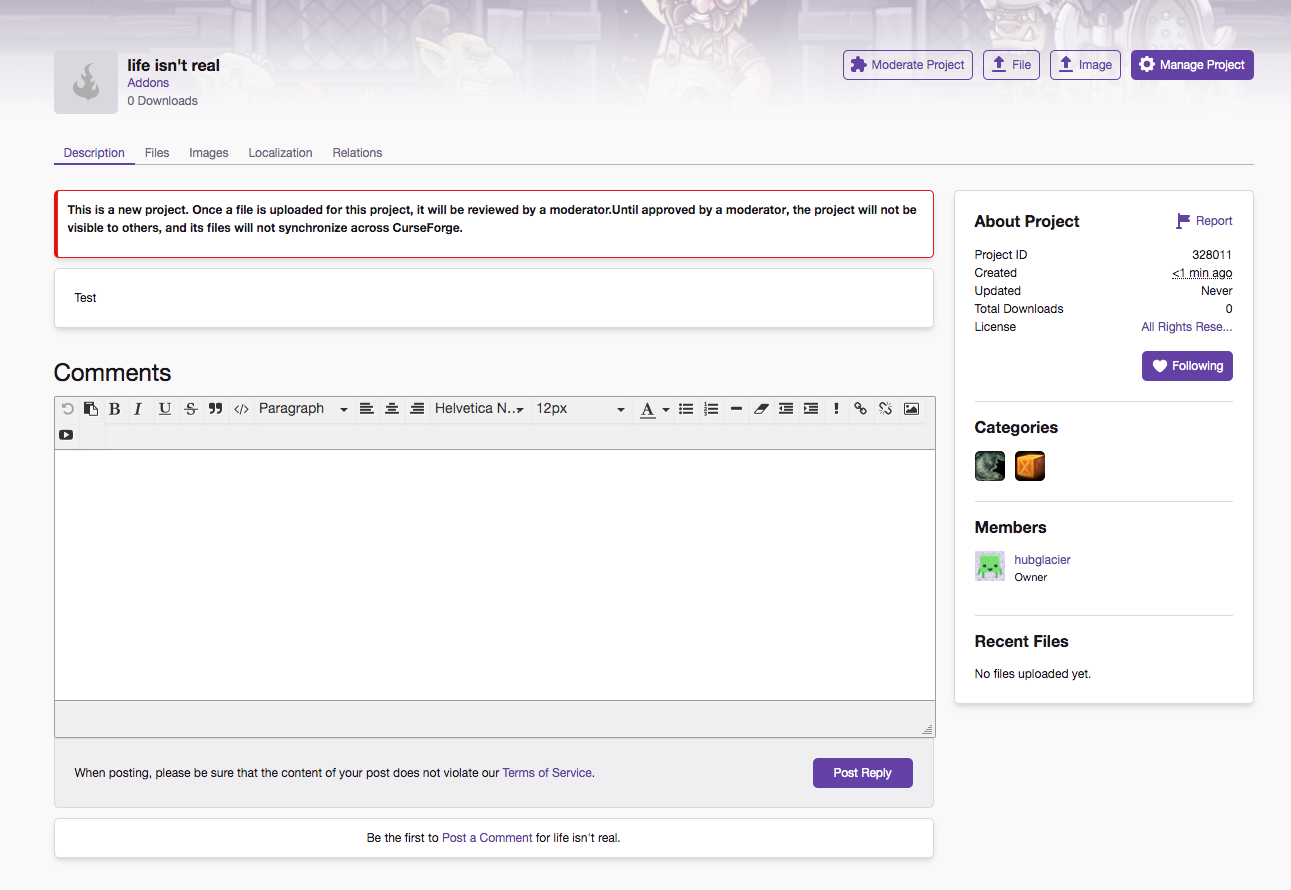
    Once you have the form filled out you can press the Start Project button at the bottom. You should be taken to a page similar to this:


    New Project


    Step 2: Additional Info

    Click the Manage Project button in the top right corner. This will drop you into the General settings page, and will allow you to update metadata fields and your logo image. Make sure all these fields are updated properly. Once you are happy you can press Save Changes.


    Settings


    The remaining tabs on this page can provide you with more control over certain aspects of your project, such as adding/deleting members, adding issues to the issue tracker, or directing users to your source code. We highly recommend updating the info in all tabs before submitting your project for review. 

    • Members: Here you can add team members, swap ownership, set reward split or remove members as needed. Only give access to people you trust. You have control of how much of the project they can edit. No one but you or an admin can change ownership of the mod.
    • Issues: You can link to an external issue tracker, or you can choose to make use of the internal issue tracker on CurseForge. You can set up custom tags like "enhancement", "bug", or "incompatibility"
    • Source: You can link to Github, Bitbucket or another external repository to share your source code. 


    Step 3: Additional Images

    Note: This step is only REQUIRED for texture packs or Minecraft resource packs that provides textures. If this does not describe your project, please skip to Step 4.


    Back on your Project Dashboard, you will see an Image button next to the Manage Project button. This allows you to upload more preview images without embedding them in your main page. You can give the images a title and a description. At least one is required for texture packs.


    Step 4: Submission 

    You have your previews and settings all in place. However, your project is still awaiting moderator approval. The last step before your project is submitted to moderators for approval is uploading a file.


    Navigate to your Project Dashboard. To the right of your project title is a button labeled File. Clicking this will take you to the Files tab and once uploaded, will list your project files.


    Files


    This page will differ slightly based on what game your project is for. Below is a list of fields that you will fill out to have your file submitted:


    • Upload file: Pick the file you want to upload
    • Display Name: Your project file is named v2.0 , but you want it to look a bit fancier, type in a name here that will show up in the file list. It is NOT recommended to give every file the same name, and this field is optional.
    • Release Type:
      • Release: Syncs to the Twitch Desktop App by Default. These are the files that will auto download when a user clicks the default download button on a project.
      • Beta: Will not sync to the Twitch Desktop App unless the user chooses to receive Beta files. These files will also not appear in the sidebar for all games (except Minecraft).
      • Alpha: Will not sync to the Twitch Desktop App instances set to receive Alphas. These files will also not appear in the sidebar for all games (except Minecraft).
      • NOTE: Projects must have at least one "Release" file before they synch to the Twitch Desktop App.
    • Changelog: A place to put all the updates you have done between versions
    • Supported Version: Pick which versions of the game your project is compatible with. You can choose multiple versions.
    • Supported Java versions (Minecraft Only): If your project only works in Java 6, this is the spot to say so.
    • Related Projects: Dependencies and Incompatibilities. This is where you can link to other projects on CurseForge. You can link to a required project, or to a recommended project, or to a project that you know does not work well with your project.

    After filling out all of the appropriate fields, click Submit File. You will be redirected to your Files tab and you should be able to see your newly added file. You can add more files by following the same process you just went through. At this point your file will be labeled "Under Review" and it is off to the moderators to review and approve it. They may send it back to you requesting changes. They may also reject it. Changes and rejection reasons are covered under Changes Required and Rejected Files


    Posted in: Creating And Submitting A Project
  • published the article How to Create a Modpack

    How to Create a Modpack

    Modpacks are a primarily collection of mods and configuration files, but may also contain textures. The guide below gives an introduction to creating your first modpack with the Twitch Desktop App (Windows/Mac):


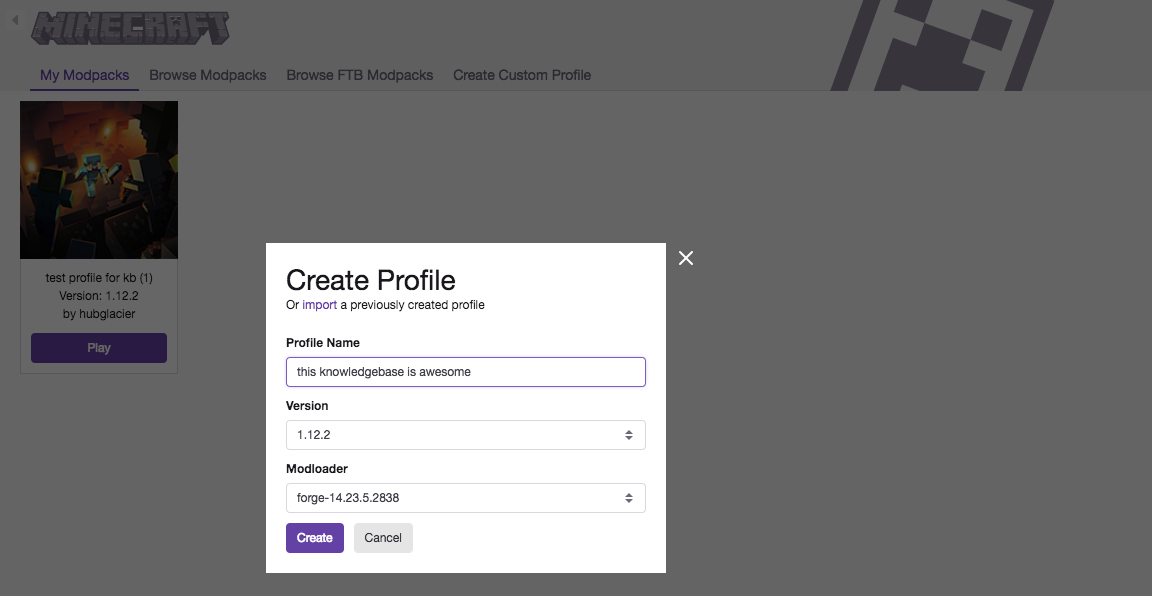
    First step in creating a Modpack is setting up your new profile in the Twitch Desktop App. To do this, navigate to the Mods section, select "Minecraft" and select "Create Custom Profile" from the navigation bar. You will be greeted with this page. From here, you will give a name for your profile, select the version of Minecraft, and the version of Forge that your pack will use.


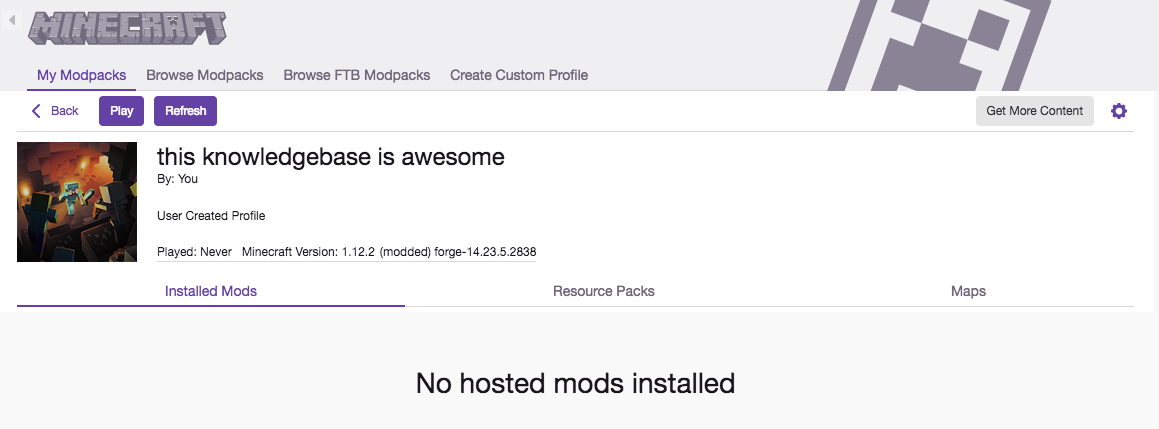
    Once you are done, hit okay and the Twitch App will setup your profile for you. When the profile is done setting up, it will have a Play button on it. To open up your profile, just click on it anywhere aside from the Play button. This will open up your main interface for adding content to your modpack. There is a tab for Mods, Resource Packs and Maps. Lets add some mods to your pack! To do this, click on the “Get More Content” button.


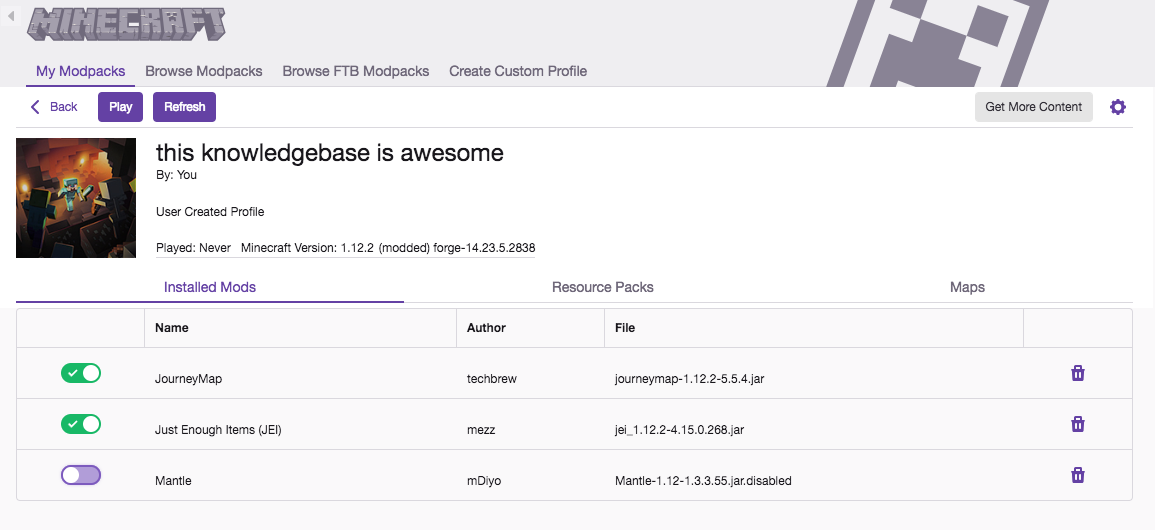
    You will be brought to a search screen that lets you look through our current catalog of mods. You are able to search by name and category. To install a mod, just hover over the picture and click the “Install” button. This will add it your your profile. You can do the same process for both Resource Packs and Maps. I installed a few mods to my profile and also disabled one of them by clicking the slider to the left of their name. Disabled mods will not be used when you launch the pack, but will stay in the profile. 


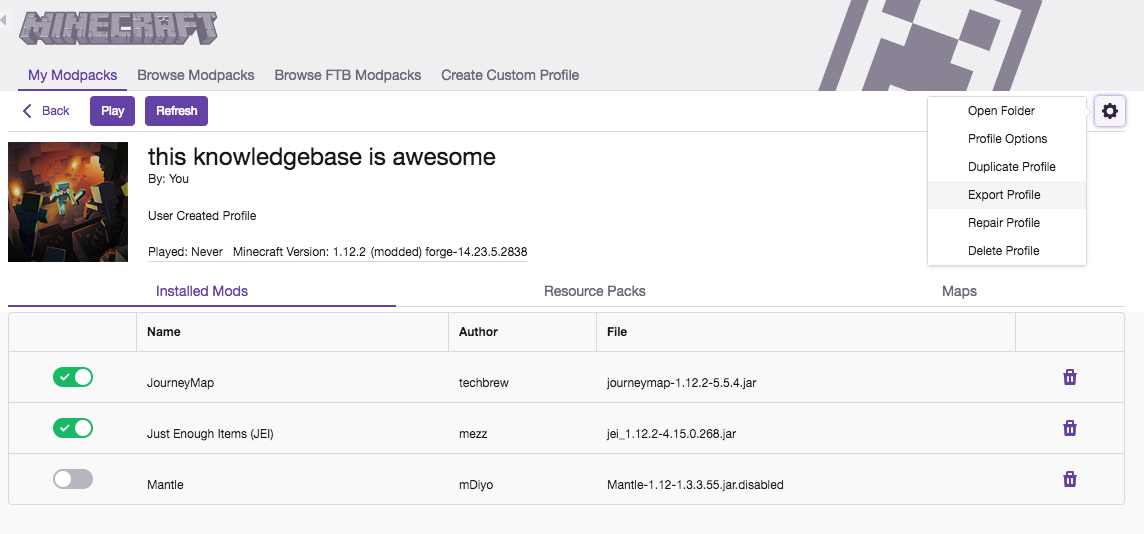
    Other options for the profile are available with the extended menu at the top right. Just click the button and you will open this menu. From here you can open the folder that this profile resides in order to do tasks like editing configs or adding approved third party mods to this profile, You can edit the profile options, and see the rest of the options available to you.


    Finally, you will want to test your modpack. To do so from this screen, just hit the “Play” button in the top left to launch your profile and modpack!


    Exporting Modpack

    A properly formatted modpack is a .zip file. Directly inside the .zip file is the manifest.json and a folder labeled overrides. Your config folder, scripts folder, and any other folders your pack needs such as maps, saves, resources, mods etc also go inside the overrides folder. Once your project is created, you can export the pack as shown.


    Open up the pack you want to export, and open up the profile options. Click the Export Profile button.


    You will be welcomed by this screen. You can choose what is exported and what is not from here.


    You can add extra files such as maps or resources or saves by marking their boxes in the dropdown list. Packs with mods installed in non-traditional locations such as "/mods/1.7.10" may take longer to review.  


    Once you have everything together you can create a modpack project. 

    Modpack requirements

    • A logo with equal dimensions, at least 400x400 pixels. This must not be a blank image; your pack's name will suffice.
    • A description that should explain the purpose of your modpack and any unique features it has. "Made for youtube" or "my favorite mods" are not proper descriptions.
    • If the pack has mods that are not hosted on CurseForge, the description must include a list of those mods and credit for the authors
    • A valid .zip with a manifest.json and an overrides file containing configs/scripts  

    Third Party Mods

    We believe the ideal is to have all mods in a modpack hosted on CurseForge.  This allows for the best user experience and ensures authors receive credit and rewards for the blood, sweat, and tears they put into the works they have wrought.  We also acknowledge that not all authors wish to upload their mods at this time, but allow for public usage.  


    To help facilitate the transition we're going to provisionally allow certain third party mods in the overrides folder.  If this proves to be a burden or issue for authors or overly taxing on our moderation staff we reserve the right to change stances on the acceptability of any specific mod or of all override mods.  

    Override mods must meet the following requirements:
    • The mod must be licensed as MIT/GPL or an equivalent. A blurb on their webpage saying "You can use this in anything including packs" will suffice as long as there are no conditions beyond credit attached.
    • The mod's open use policy is not conditional beyond requiring credit. Mods with "link back", "text file credit", or other requirements will not be considered.
    • The jar must be an official unmodified distributable from the authors or a licensed and documented fork of the mod.  This is not a back door for unlicensed derivative works, nor do we wish to cause undue support burdens on mod authors.
    • Personal permissions will not be accepted. You must submit any unlisted third party mod through the list of approved Non-CurseForge mods for review.

    You can find a list of third party mods already approved for modpacks on the list of approved Non-CurseForge mods.


    If a mod is on CurseForge you can use it in a pack on the client through the manifest.json. If a mod is on the third party list you can use it by putting it inside overrides/mods. If its not on CurseForge and not on the list, the pack will be rejected.

    Submitting Mods:

    Users and modders may submit mods/texturepacks to be added to the list of approved Non-CurseForge mods by filling out this form. We will need:

    • A link to the official download site.
    • A link to the license.  Personalized permissions, a link to a text file, forum screenshots, etc will not be considered as they are easy to forge and would require too many man hours to approve individually.

    If the Mod Author does not have open use permissions, but would be ok with packs distributed through the client including their mod, all that is required is for the Mod Author to give permission (e.g. Allowed to be included in Twitch Desktop App/CurseForge Mod Packs) is all that is required.


    However, since people can misunderstand or misrepresent things, if a third party Mod Author feels a modpack creator is using their mod in a way their license does not permit, they can report the modpack for review. Modpacks violating mod licenses and/or the requirements we've posted will be removed from public view and given a chance to fix the issue before the pack is deleted. 


    If a Mod Author wishes us to remove a mod from the list for any reason please just let us know.  We will respect that decision in all future moderations.

    Posted in: How to Create a Modpack
  • published the article Tax Information

    Tax Information

    Why CurseForge needs tax information

    CurseForge requires all providers—including U.S. and non-U.S. persons to provide valid taxpayer identification in order to comply with U.S. tax reporting regulations. The tax interview collects the information needed to establish this identification, and produces a document (either an IRS Form W-8 or W-9) which is used to determine if your payments are subject to IRS reporting, and if applicable, to reduce or eliminate U.S. withholding tax.

    What tax information is needed

    Are you  US Person or non US Person?

    The tax interview is designed to obtain the information required to complete an IRS W-9 for a US Person, W-8 form  for a non-US Person to determine if your payments are subject to IRS Form 1099-MISC or 1042-S reporting. In order to fulfill the IRS requirements as efficiently as possible, answer all questions and enter all information requested during the interview. Use caution to avoid misspellings or entering incorrect Tax Identification Numbers, which can result in an invalidated tax form.  The tax interview must be completed for each CurseForge Rewards Program participant to which this rule applies.


    Click here for more information about the distinctions of US and non-US Persons  IRS Website.

    Change of Circumstances

    You are required to notify CurseForge of any change to your tax identity information by retaking the tax information interview if the change could invalidate your W-9, W-8 form. Change of circumstances includes:

    • Change of your legal name (for example, due to marriage or incorporation)
    • Change of your address from one country to another
    • Change of your business Tax Identification Number (TIN) from your Social Security Number (SSN) to an Employer Identification Number (EIN)

    How to submit your Tax Information

    Submit a ticket to https://support.curseforge.com with the email associated with your account and your username to notify us that you are ready to submit your tax information. You will then receive a response to your ticket with a link to the Amazon Tax Interview. Once that form is complete and submitted our team will process your rewards account and you will be able to submit orders. It can take several days for our team to approve your account as this process requires a manual review currently.


    This process can take a couple of weeks from start to finish, please be patient. If you have any questions, as always please submit a ticket to https://support.curseforge.com

    Posted in: Tax Information